Monday, February 6, 2012

More iPad, iPhone, & iTouch Apps for Education

InClass - Free This is a great app for students - Contains a class schedule that shows all tasks & assignments for the day. It allows the user to take photo, video, audio or text notes within the app. Electronic handouts can be opened in the app. Notes can be exported via iTunes and shared on FaceBook. Click here for more information. 


MyScript Memo - Free Have you ever wanted to jot a quick note on your iPhone or iPad with your stylus or finger? This app allows you to do so, then converts your handwriting to text! You can export your note to evernote, photo album or email. You can also share on FaceBook and Twitter. Multiple languages are supported.  Click here for more information. 


QRAFTER - Free This app is a QR code reader. What makes it different from all other QR readers is that you can also create QR codes within the app for a $2.99 upgrade purchase within the app. What is a QR code you ask? You see these on advertisement pages in magazines. It is a quick way to get your information out there without taking up a lot of space. For education, you might create a worksheet & put a QR code at the bottom that contains a link to all of the answers for self checking. It is also a quick way for students to go to the same website on their smartphones. Click here for more information. 

Google has a free QR Code generator - click on the link to access: http://createqrcode.appspot.com/

Saturday, January 7, 2012

iPad for the High School Math Classroom

It has been almost two years since my last post.  Since then I have moved out of the classroom into administration.  Last spring I received an iPad 2 and have been learning how to use it to enhance instruction. I have found several apps that would benefit math teachers and their students.

Doodle Buddy-free with ads enabled
Have you ever wanted to write out a solution to a problem and post to your website or email it?  You can do just that with Doodle Buddy.  This app turns the iPad into an individual whiteboard complete with markers and chalk.  Work can be saved to the photo library.


To the left is an example of completing the square using the Doodle Buddy App.


Quick Graphs- free for both iPhone and iPad
There is a small fee to enable separate scaling of the x and y axes. This one is my favorite for graphing. The graphs are easy to scale and colorful.  It is a much better picture than a graphing calculator display.  Save the graph to the photo library and insert into tests or worksheets. 

I used the Skitch app (free) to build a frame around this graph.


Skitch was also used to draw arrows and record the end behavior on the graph.


Screen Chomp - free from TechSmith the makers of Jing
This app is still in beta.  It lets you record what is written on the whiteboard. Use it to demonstrate how to solve a problem from start to finish. Import a picture of a geometry problem and annotate on top of it.  Share a link of the recording for students to access later.  This app is already good and will continue to improve.
Click here for a brief example of Screen Chomp.

Algebra Touch - under $5 available for iPhone and iPad
This app is great fun for algebra 1 students. Fingers are used to touch the parts of expressions and equations to simplify or solve. There are numerous practice problems and lessons that get progressively harder. 


Unit Circle - free available on iPhone and iPad 
This app is useful for trigonometry. It displays the unit circle providing the six trigonometric ratios for the angles students are usually required to memorize. It is a quick visual reference for students. 
My post on math apps would not be complete without mentioning the Wolfram Alpha app.  I so wish this app existed when I was in high school and college. Ask it any math problem and it will solve it.  It will even provide the graph, solution steps, and alternate methods. It is simply amazing. 

Hope this gets you started on using the iPad for math. If you know of additional apps out there that you like for high school math pleas let me know in the comments.

Friday, February 5, 2010

SHSU Math Conference

Embedded below is a slide presentation highlighting various Web 2.0 Tools that have been useful to me as a math teacher. I will be sharing and discussing these topics at the Sam Houston State University Math Conference on Saturday.

Sunday, December 6, 2009

Geogebra - A Tool For All Math Teachers

I have been playing with Geogebra for several hours. It is a wonderful math applet that applies to algebra, geometry, precalculus, and calculus. The wonderful part about Geogebra is that no download is required to use the program. This means that Geogebra can be used anywhere there is an internet connection. There are some great resources on how to learn to use Geogebra within the geogebra wiki and at Math 247.


Geogebra Wiki contains some ready to use activities created by math teachers. Click on the topic that your class is studying and try one of them out. You do not have to be good at geogebra to use these activities. Most of them contain directions right on the activity so that they can be used by students with no knowledge of geogebra.

If you want a better understanding of how geogebra works and would like to create activities for your own class, start at Math 247. There are loads of instructional materials for the teacher, beginning witht the basics.
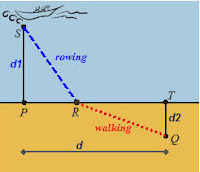


Do you remember working a problem in Pre-Cal or Calculus in which there is a boat offshore at point S and the occupant needs to get to point Q by a combination of rowing and walking? At what point R should the occupant land his boat in order to get to point Q in the least possible time? Students have a very difficult time with this one. Click on the following link for a great mathcast on the boat landing problem at math 247. The teacher takes you step by step through the problem, completely illustrated by geogebra. Not only is it a great solution, but you will pick up a lot of techniques to become more adept at geogebra.


Below is a very simple geogebra sketch of a parabola. Move the sliders to see the the effects on the graph of f(x) = ax^2+c when the values of a and c are changed. I plan to use this sketch in my algebra class when we begin quadratics.


I found other wonderful resources on Geogebra besides those mentioned above. See Kate Nowak's post on triangle centers and embedding a geogreba sketch into a blog. See Mr. L's Math on geogebra projects with parabolas.

Do you use Geogebra for demonstrations or do you have students construct sketches? Let me know in the comment section.

codebase="http://www.geogebra.org/webstart/3.2/unsigned/"
width="760" height="371"mayscript="true">


Sorry, the GeoGebra Applet could not be started. Please make sure that Java 1.4.2 (or later) is installed and active in your browser (Click here to install Java now)

Wednesday, December 2, 2009

Five Ways to Use Google Forms in the Classroom

Google Forms is such a useful tool. Listed below are all the different ways Google Forms can be used by the classroom teacher.

1. Use a Google Form to collect parent and student information such as email addresses, phone numbers, and other general information. The hardest part is deciding what information you want to collect. After that it just takes a few minutes to create the form. Once created, copy the link to the form and post it on your website. Keep in mind how parents and students might respond to each of your questions. For example, when you request a name, you might want to do two separate questions, one for the first name and one for the last name. Otherwise, you might not be able to easily sort alphabetically later.

2. Use a Google Form to collect links from student of projects they have done online. This makes it so easy for grading later. I have used a google form to collect the URLs for student created animotos, glogs, toondoos, and prezi presentations. This cuts down on printing and organizes all of my student work in one spreadsheet. I simply have to click through the spreadsheet for class presentations or for grading.

3. Use a Google Form to survey your students. Perhaps you would like to know who they would like to work with when you are about to change groups. Maybe you want their opinion on a certain activity.

4. Use a Google Form to give a quiz. Write a few questions, post the link to your website and ask students to take a quiz. Be sure to take the quiz first so that the first line of your spreadsheet contains the answers. If your quiz is multiple choice, make it self grading. Click here to see a screencast on how to create a quiz that is self grading. For more information on self grading quizzes, check out Wes Fryer's blog Moving at the Speed of Creativity.

5. Use a Google Form as a sign up sheet for various things. For example, my daughter's band director asks students what kind of sandwich they want before the game via a google form.

Sunday, November 29, 2009

Create a Quiz at Mystudiyo


Want to create a quick quiz that your students can access online? It is pretty simple to do at at mystudiyo. All you have to do is sign up for an account, select the quiz style you want and type in your questions. You can also upload upload images to go with your questions. See below for a five question geometry quiz on right triangles. Some of the questions are pretty tricky. Try it out, responses are anonymous.

Saturday, October 24, 2009

Let's Get Zesty With Prezi

Debbie and I are conducting a workshop on Prezi at the Sam Houston State Technology Conference on Saturday, October 23, 2009. Our presentation is in the form of a prezi and is embedded below. Included are snapshots and links of several student created Prezis. Prezi is a non-linear presentation tool that is so much better than PowerPoint. It can be used with virtually any subject at any grade level. We have found that students find prezis much more interesting to watch than traditional slide shows. They also feel that prezi presentations are both easy and fun to use. Both of us have had very positive experiences using Prezi with our students.


Conference participants please click on this link to share your Prezi with the group.

Tuesday, October 6, 2009

Technology In A Science Class

I wanted to share some ideas that I have used in both my Chemistry and Biology classes integrating technology with the WOW carts. To begin, I must tell you a little about me and my perspective with technology. I love using technology and learning new applications. I would spend hours working with various programs learning what they could offer me and my students. I wanted to share as much as I could with my students but was limited by computer availability and more importantly I was limited by my lack of imagination on how to implement the technology in a meaningful way in a science classroom. I have since been able to use certain Web 2.0 applications in my class to differentiate and support my students. In the beginning of the school year when we were reviewing safety in the science laboratory I assigned students to create a safety cartoon using ToonDoo. This was a modification on an existing assignment where the students would create paper safety cartoons.

\Toon\


Another program I have had success with is Wallwisher.
My biology students created walls of vocabulary terms for review of our cell unit. They were instructed to provide a description of the various organelles and include a picture for each term. I then borrowed Jill's great idea, I had the students submit a Google Form with their wall address to turn in the assignment. Because it timestamps the submission I was able to determine if the student was on time.

If you decide to use wallwisher make sure the students choose that anyone can view their wall but only they can add sticky notes. I would also suggest that you tell them not to overlap their sticky notes. They can extend below the viewable space on their page to add more. Make sure they stay within the width of the computer screen. This allowed me to print their virtual walls to post on my walls of our classroom. I

Tuesday, September 22, 2009

BookBox - Display Your Favorite Books

BookBox is an easy way to display covers of your favorite books in your blog or webpage. This might be a useful tool for teachers to advertise required reading. Students might use it to show the bookcover when writing book reports for their classroom blog or wiki.

BookBox is very simple to use. All it requires is the title, author, or ISBN number of the desired book. I entered four of my favorite titles for my classroom reading, created a password, and clicked on save and embed. The site generated an embed code for me to copy and paste onto my blog.

My BookBox is located below. If you click on one of the books, it will take you to its Amazon page. This might be convenient in that it gives the student or parent more information on the book as well as pricing information. It is also good for Amazon. The creator of the site indicated that plans were in place to offer additional book stores in the future.

Sunday, September 20, 2009

LIve Binder - An Online Notebook for Teachers and Students


Like most teachers my lesson plans are located in a three-ring binder. I have hard copies of any electronic documents, presentations and notes located in this binder. I also have a flash drive that contains all of my electronic items. Bookmarks of relevant sites to my curriculum are saved in Google Bookmarks as favorites. I have always wished that I could keep all of these nice and organized in one place. Live Binder is the answer to this wish.
Live Binder allows you to add text, upload files, and upload links to an online notebook. There are options to share the notebook by email or by embedding it on a blog or webpage. I found it to be pretty easy to create a notebook. It took me a while to gather all of my materials that I wanted to place in the book. The sample notebook that I created below is an AP Statistics unit that is a work in progress. I can easily update it with new items or remove outdated items that I no longer need. The link will always find the most current version.
Live Binder is still in beta and I hope that they add a few more features. I would like to be able to copy and paste pictures from my computer to illustrate some of my lessons. Pictures can be uploaded, but won't appear until they are dowloaded. Currently, pictures from Flicker can be added to illustrate the text. I would also like for there to be an option to turn my documents into ipaper. I could have gotten around this by uploading my documents to Scribd then uploading that link to my Binder. However, I was in a hurry and did not take the time to do this.
I see LiveBinder as a valuable tool for teachers. They can use it for personal use to keep track of their lesson plans as I did in my sample. A department could also display common items to all teachers to embed in their webpage for students and parents to access. The science teachers at McCullough Junior High School have created a Live Binder for their common science forms, links, and assignments. It is located at www.livebinders.com/edit?id=2440 This binder is private and requires an access code. The access code was given to students and is on the science teachers' websites. However, I will not list it here to maintain their privacy. It is nice to have the privacy option available for the content in Live Binder. My sample is public so that you can view it. There are also several other public notebooks at the Live Binder site. Hopefully, you will find this application useful for your classroom.

Wednesday, August 5, 2009

Presentation Tools - Technology Session IV

A collaboration between Jill Malpass and Debbie Shepard

Before we begin please access the presentation tools wiki by clicking here. This page includes other types of presentation tools that you may find interesting and want to learn more about on your own or later this year.

Wednesday, July 29, 2009

Five Helpful Tools for the Math Classroom

I am always on the lookout for really cool internet applications that I can use in math. If you know of others, please comment.

Equation Editor

You might notice that I have added an equation editor to the sidebar of my blog. Click on the format of the equation needed, make a few modifications and you have a very nice looking math equation. Normally, I use MathType on my own computer with MS Word. However, MathType is not free and not available in the cloud. Thus, when working on internet based computers, other options have to be utilized. I wouldn't want to have to type a whole worksheet using this gadget, but it isn't bad for one or two equations to use in a presentation.

Flash Cards

I am a big fan of Quizlet for vocabulary flash cards. I previously wrote about quizlet here. Quizlet is great for learning vocabulary. It is wonderful for differentiating instruction with minimal effort on the part of the teacher. This summer students in a PSAT Prep class typed in 16 word lists with definitions of 25 words each in under an hour. Afterward, they were instructed to concentrate on learning the first list. It was fun to watch students make their choice on how to learn. Some of them reviewed the flash cards electronically. Many of them played one of the two games available on quizlet. Several others practiced the words by taking a quizlet generated test. A few chose to learn the old fashioned way by creating index cards for their words or by studying the list on paper.

Students often are required to memorize many formulas in math as well as trigonometric identities. I wasn't able to figure out how to get quizlet to handle a math formula. Then I discovered another flashcard application called Cobo Cards that uses Tex to make beautiful flash cards with equations. Once I learned how to copy and paste the Tex commands into Cobo Cards, writing equations was a breeze. Click here to see my set of trigonometric identity cards.

Graphs

Math teachers use many graphs on their tests and worksheets. Students, too, need to be able to use internet based graphing options if they are to create presentations. My twitter friend @JackieB introduced me to Graphsketch shown at the left.


Another option for creating graphs would be to utilize the computational knowledge engine at WolframAlpha. I typed in an expression, then used Photo Filtre to copy it and save as a jpeg. It does not have the grid lines like graphsketch, but it is very well done.


Animoto


I found the animoto embedded below at http://teachingcollegemath.com/?p=654. I thought it was great and plan to show it to my students once school starts. Hopefully, this will help them understand the concept of a function. Another use for math animotos might be to illustrate a theorem or develop a proof in geometry. Students could create an animoto illustrating the steps of solving an equation. The site mentioned above describes the method for creating the function animoto using PowerPoint slides. I think Google Doc Presentation slides could easily be substituted. Each slide would need to be saved as a jpeg and uploaded to animoto.


Games

One of the best sites for math games is coolmath.com. Here you will find all kinds of games for all levels, elementary to secondary. The games are interactive and just plain fun. Be prepared to lose a few hours while exploring this site.

I hope that you will find these tools useful as well. Please leave me a comment regarding your favorite internet math tool.

Wednesday, July 15, 2009

Tuesday, July 7, 2009

Differentiate Instruction with Technology - Presentation with Prezi

Recently, Amy Mayer wrote a post about what an amazing tool Prezi is for education. The community manager of Prezi contacted her to see if she would be interested in testing an embed feature, which will be available shortly. They kindly allowed me to test it as well.

Embedded below is a prezi presentation of a brief description of Web 2.0 tools that would be helpful to teachers who are just getting started integrating technology into their lesson plans. It is organized by study tools, presentation tools, audio tools, and teacher tools.

Truly, I created this Prezi so that I could improve my own prezi skills. In my opinion Prezi is one of the most incredible presentation tools available. Prezi's showcase contains several examples that I thought were very creative. There is one using rings to create a giant Venn diagram about books. There is a really cool religious one in which verses from Psalm 33 of the Bible have been placed into framed pictures that sit on a shelf. The one that interested me most featured a photo that was used as a background to incorporate the presentation. This is what I wanted to try. I chose a picture, created a presentation about technology, and used their newest embedding feature.

Thank you Prezi developers. Now, I can't wait to try your next new feature!


Sunday, June 28, 2009

Collect and Organize Online Videos

Have you ever wanted to keep track of all your online videos in one place? Vodpod allows you to collect videos found on the web in one convenient place. The site makes it easy to organize videos used to support your curriculum. When you are ready to show the video, go to your vodpod account and select it. Create an account at vodpod and start collecting. See my collection here.

Tuesday, June 16, 2009

Summer Technology Session - Classroom Blogging


Monday, May 25, 2009

Computational Knowledge Engine - Wolfram Alpha


WolframAlpha is really cool! Enter a date and the site will reveal all kinds of facts about that date. Enter a question: What is the meaning of life? It gives you the answer as revealed in the movie Hitchhiker's Guide to the Galaxy (42). Enter a math formula. Wolfram Alpha will graph it and provide the derivative, integral and other interesting math facts about it. Enter a city. Wolfram Alpha will report data about that city. Enter a name. Find out the history and popularity of that name.

Watch the introduction video for other questions Wolfram Alpha can answer.

I entered http://www.conroeisd.net/ and received the following information about the website.


Creating Slide Shows Using Online Applications


My previous post involved sharing slide shows that have already been created. What if we want to create one with the WOW computers? Open Office is available on the computers, but there are other online options as well. Recently, Jose Picardo, a modern languages teacher at Nottingham High School posted information on his blog regarding five different applications for creating presentations. The applications he reviewed are Empressr, Google Docs, Prezi, Slide Rocket, and Zoho Show. At his site, he lists the pros and cons for each program. There are two obvious advantages to using any of these applications. One is that the presentation is accessible from any computer. The other is that presentations can be created collaboratively. Click here to view the Box of Tricks post.

Sharing Presentations Online


Slideshare is an easy way for teachers to post their PowerPoint, OpenOffice, and Pdf presentations online for students to access. Simply upload presentations at http://www.slideshare.net/ Presentations may be made public for everyone to view or private for just a few viewers. Share presentations with others either by copying a link or embedding the presentation in a blog or website. Assign tags for organizing and to facilitating a search for content. Slideshare also keeps statistics on how often the presentation is viewed. This gives the teacher information on whether or not the presentations are actually viewed. Above right is a snapshot of a slide show with information on the number of views and the tags that apply to the content of the presentation.

View the presentation below for more information on using slideshare.